 OriginalHDR
The wordmark
White type on black — the classic case. The whites are selected automatically.
glows: whites
Upload a logo, choose which colors should glow, download an HDR JPEG. On HDR screens the chosen parts shine up to 7.5× brighter than #FFFFFF. Everywhere else it's a perfectly normal JPEG.
PNG, JPEG or WebP · free · nothing is stored
#FFFFFF squares.One carries a gain map.SDR white
as bright as a screen normally goes

HDR white · +2.9 stops
up to 7.5× brighter
Checking your display and browser…
Original artwork, converted with this tool. Drag the handle; on an HDR display in a capable browser the right side glows. “Use this” loads the original into the tool above.
OriginalHDRWhite type on black — the classic case. The whites are selected automatically.
glows: whites

 OriginalHDR
A white ring plus one brand color. Whites and the blue are both pushed to the same peak.
glows: whites + #2f6bff
 OriginalHDR
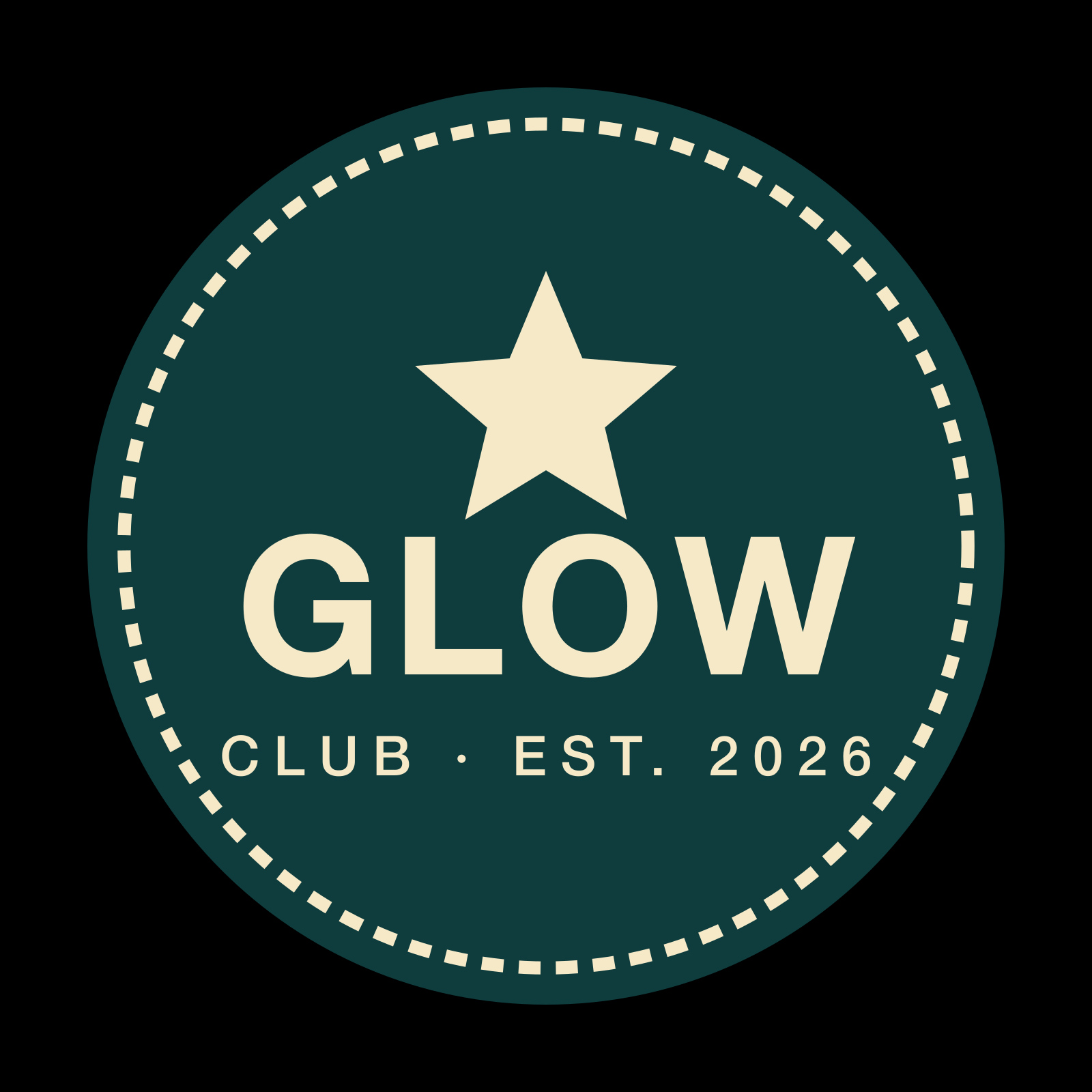
Cream type on dark teal — not white, so it's picked as a color. Light elements on dark backgrounds glow best.
glows: #f5e9c8
Your JPEG stays a normal JPEG. For the web we add an ISO 21496-1 gain map — a second, tiny grayscale image that tells HDR-aware software how much brighter each pixel may go. For LinkedIn we write the pixels in BT.2100 PQ with the matching ICC profile, which LinkedIn preserves.
Light, near-white elements on dark backgrounds. Strong (+2.9 stops, ~1,500 nits) is the measured real-world sweet spot. Dark colors can't really glow — boosting them reads as washed neon.
HDR only shows on HDR displays in software that honors gain maps or PQ profiles (Chrome, Safari 26, Apple Photos, LinkedIn's apps). Most other platforms strip or normalize it — the file still looks perfectly normal there.
Also works on text
CSS has no way to write a color brighter than #FFFFFF yet — the HDR color spaces in CSS Color HDR are still a draft. But you can paint real text through an HDR image: background-clip: text turns the glyphs into a window onto a gain-map JPEG. The headline at the top of this page is exactly that — select it, it's text.
Brighter than white
SDR textcolor: #fff
Brighter than white
HDR textbackground-clip: text over the swatch
Checking your display and browser…
@media (dynamic-range: high) only HDR screens take the image route; SDR visitors, Firefox and print keep a real color. That also sidesteps the one gotcha — background-clip only paints ink inside the element's box, so an overflowing line would get clipped.::selection a color if yours is not already visible.filter: brightness()? The page is composited in SDR; no filter or blend mode pushes a CSS color past white. Only HDR content gets the headroom — which is what the swatch is./* 1. An HDR "paint": a solid-white gain-map
JPEG (1.3 KB). Get it from
soverybright.com/hero/white-7.5x.jpg
or make your own: upload a white square
to the tool above. */
/* 2. Paint real text through it — but only on
HDR displays. Everyone else keeps a real
color: no extra fetch, no clipping risk. */
@media (dynamic-range: high) {
@supports (background-clip: text)
or (-webkit-background-clip: text) {
.hdr-text {
background: url("white-7.5x.jpg") center / cover;
-webkit-background-clip: text;
background-clip: text;
color: transparent;
}
}
}<h1 class="hdr-text">Brighter than white</h1>Download the swatch (white-7.5x.jpg, 1.3 KB) — or make your own at another intensity.